Accessing Schedules
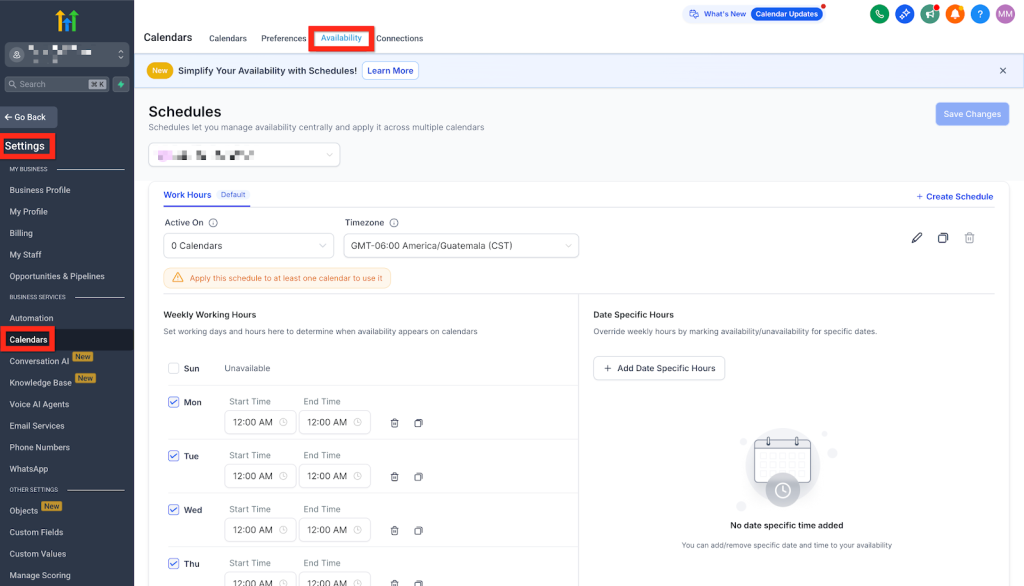
To access all Schedules, navigate to Calendars > Calendar Settings > Availability (or Settings > Calendars > Availability).
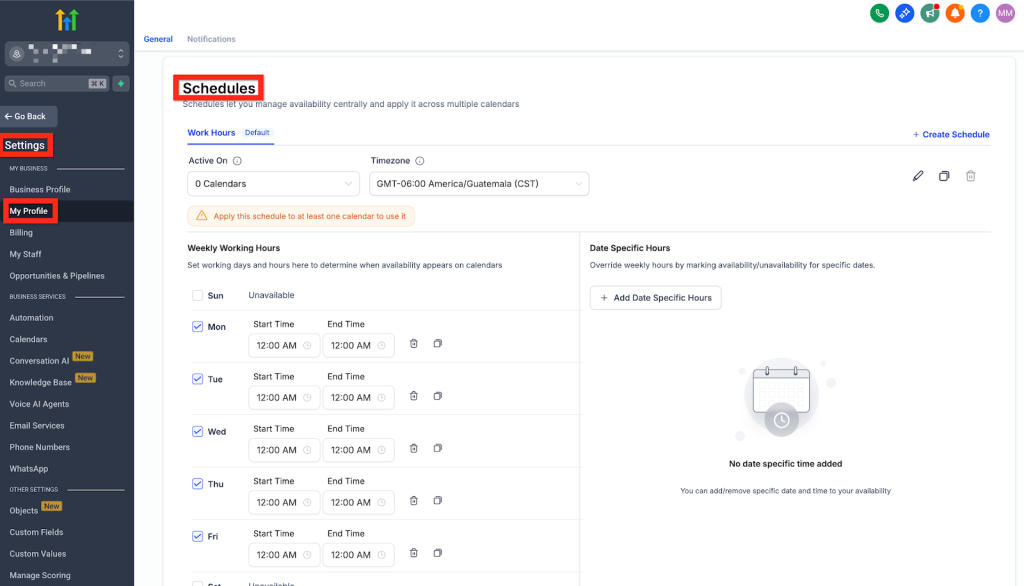
An individual user can mange their own Schedule by navigating to Settings > My Profile > scroll down to Schedules.
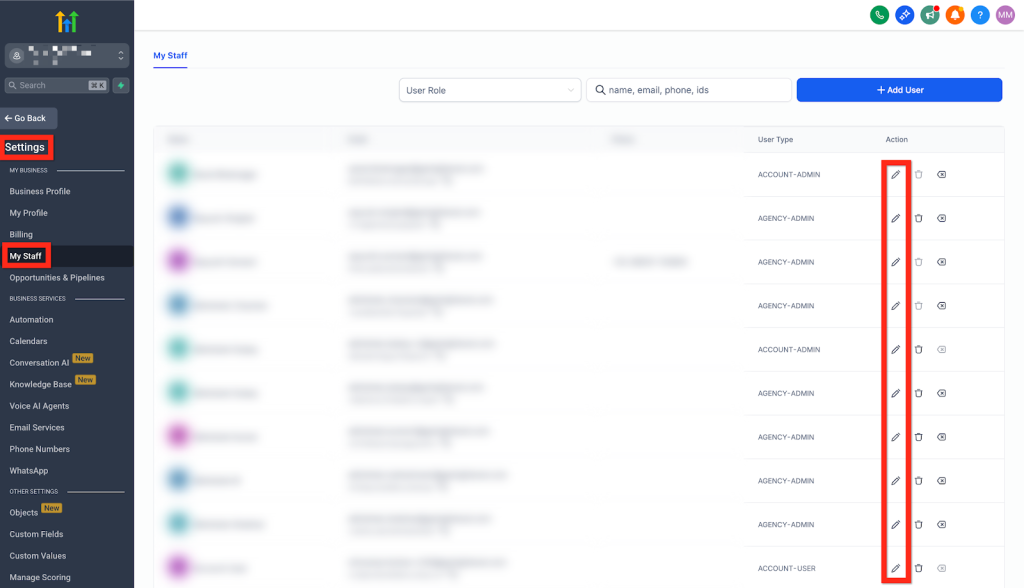
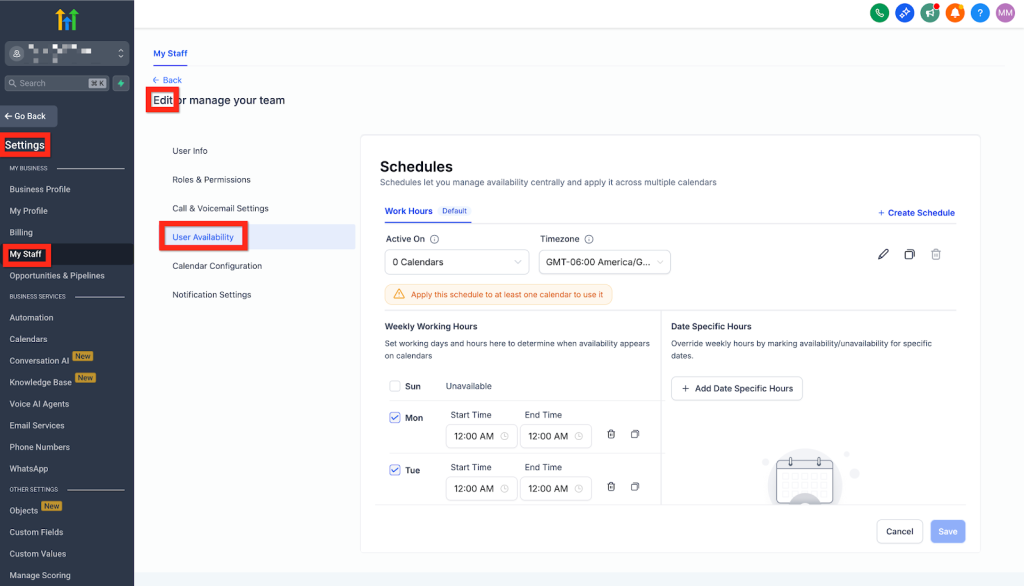
An admin can manage any individual’s schedule by navigating to Settings > My Staff > click the edit pencil icon next to a specific user > User Availability.
Select User
Select the staff member whose availability you want to manage through the user dropdown.
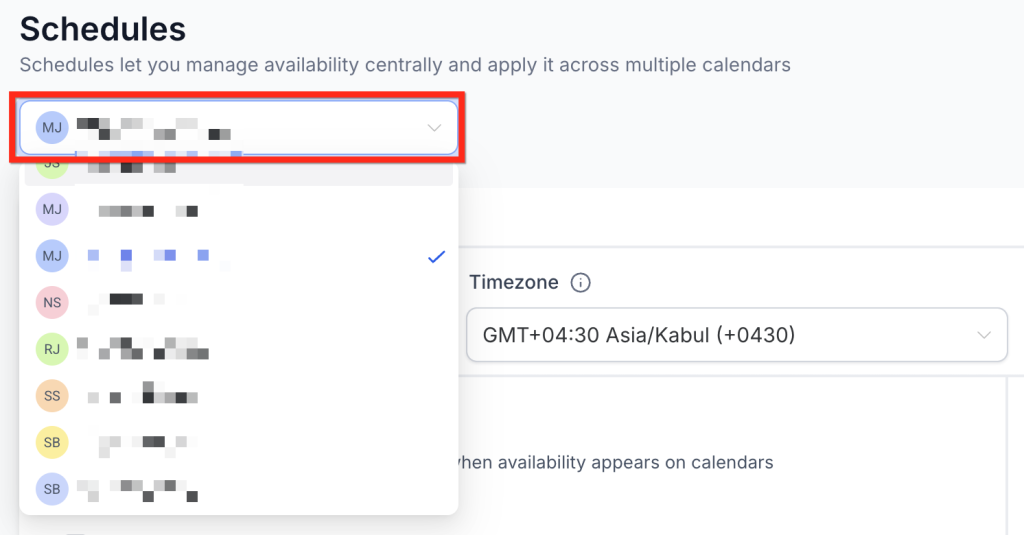
Create New Schedule
- Click Create Schedule > Enter its Name > Click on Create
- Configuring a schedule:
- Weekly working hours — Set working days and hours to determine when availability appears on the calendars
- Time Zone — Set the timezone in which the schedule’s availability is stored and evaluated
- Date-Specific Overrides — Override weekly working hours by marking availability/unavailability for specific dates
- Use the Active On dropdown to select which calendars this schedule should apply to for the chosen staff member.
- Save the schedule.
You can create multiple Schedules (ex: Consultations, Demos, On-Site, etc) and assign them to different Calendars.
Edit Schedule
From the Schedules list, you can manage your existing schedules with the following actions:
- Set as Default: (Pushpin) A default schedule is automatically applied whenever a staff member is added to a new calendar. This ensures the staff member has availability configured right away, without requiring manual assignment. You can set any schedule as default by clicking on the “Set as Default” icon.
- Rename: (Pencil) Update the name of a schedule for clarity.
- Duplicate: (Papers) Copy an existing schedule to quickly create a variation without starting from scratch.
- Delete: (Trashcan) Remove a schedule (only available if it is not currently active on any calendars).
Edit Schedule – Calendar Link
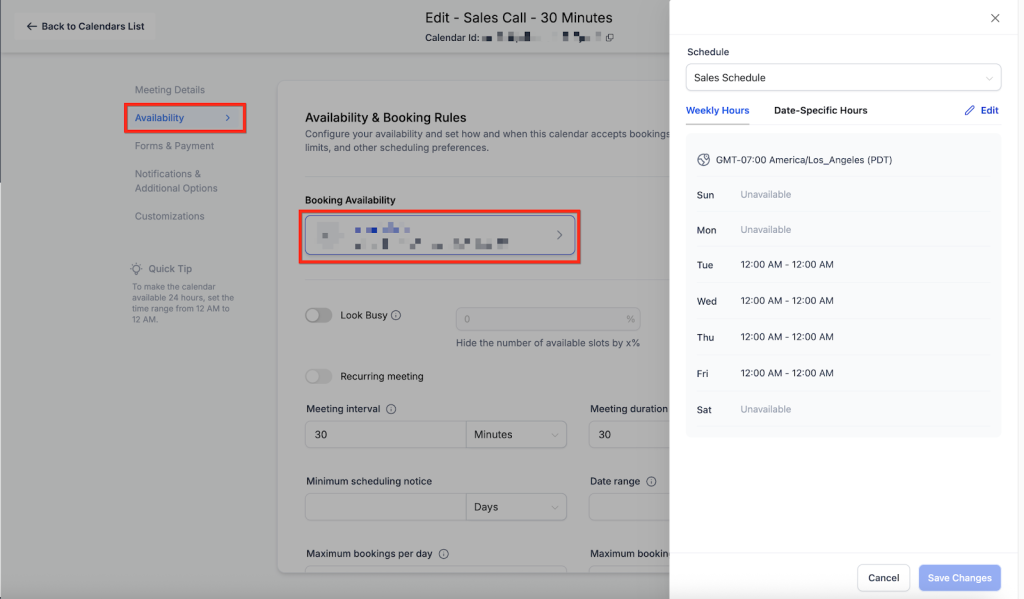
You can also manage the schedule for a specific calendar by navigating to Calendars > Calendar Settings > Edit Calendar (in Calendars List) > Availability tab.
- Switch Calendar to use a different Schedule.
- Create and use a Custom Schedule for that Calendar.
Any updates made to a Schedule apply to all Calendars linked to it (even if the edit was initiated from a specific Calendar).
Custom Schedules (Calendar-Specific Availability)
- Custom schedules:
- Apply only to that calendar.
- Include their own weekly hours, time zone, and date-specific overrides.
- Apply only to that calendar.
- A Custom Schedule can be created directly in a calendar’s Availability tab.
- To create a Custom Schedule, under the Availability tab > Select the staff member > Edit > Customize schedule for this calendar only
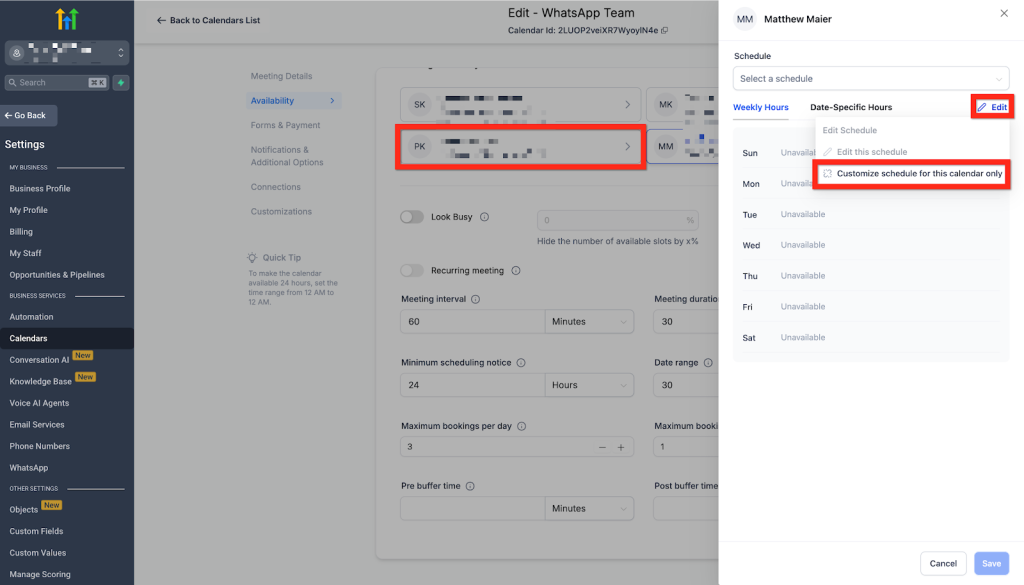
Custom Schedules don’t appear in the Schedules list. They are only managed from within the Calendar that created them.
Transition for Existing Calendars (Custom Schedules)
To ensure a smooth transition, a Custom Schedule will be created for each of your existing calendars as per your configured availabilities.
- These appear only in that calendar’s Availability tab.
- You can edit them or replace them with reusable schedules at any time.